Introduction
This configuration guide outlines the setup requirements for a multi-company Time and Attendance (TNA)
system deployed within an Azure cloud environment. It details the operational differences, synchronization
rules, and integration parameters between local on-premise company databases and the central Head Office (HQ)
Azure database. Following this structure ensures seamless data transfer, accurate global rule execution, and
proper synchronization of biometric device data across all participating business entities.
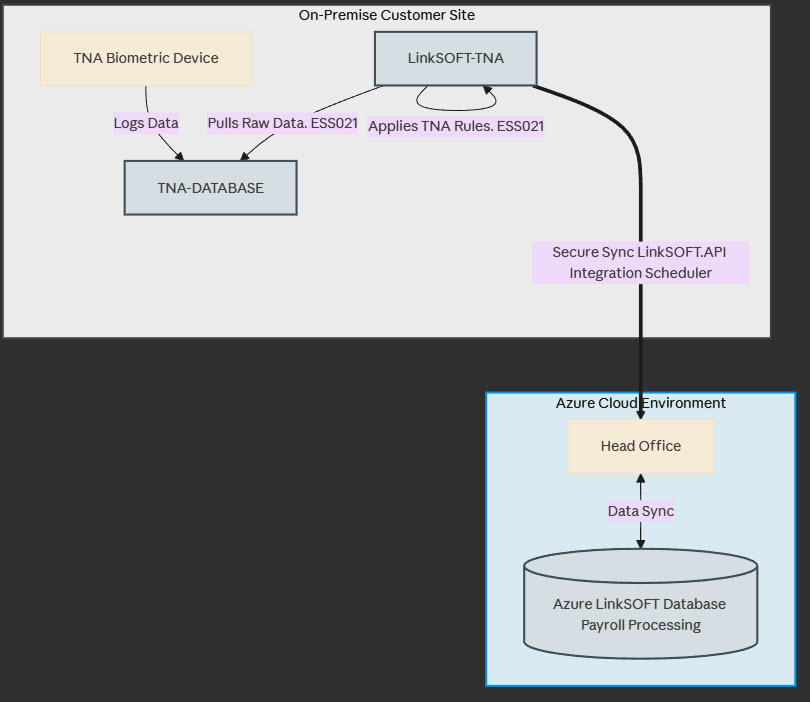
Figure 1 – TNA Device and Network Topology
On-Premise Setup
In this setup, the TNA device is located on the customer’s premises. The TNA device contains its own database,
referred to as TNA-DATABASE.
Install LinkSOFT on-premise and name the database LinkSOFT-TNA. This database pulls data from
TNA-DATABASE, applies TNA rules, and sends processed data to the Azure LinkSOFT system.
Setup Required for Company 1001 Only
-
Enable the integration named TNADevice under
Integration › Integration Setup. Configure the TNA device under Integration Settings.
This is required only for Company 1001, as the TNA link connects all company data based on Employee Mapping
(Time Management › Employee Mapping).
-
Ensure Integration Scheduler and SQLScheduler are enabled under
Global Administration › Process Setup.
Setup Required for All Companies Using TNA
-
Enable the integration LinkSOFT.API › TimeAndAttendance under
Integration › Integration Setup and configure API
settings.
-
Enable process ESS021 under Company Administration › Processes and configure Process Rules.
-
Add or import Employee Mapping under Time Management › Employee Mapping.
- Use Batch Mode to bypass Employee Code validation.
- Biometric IDs must be unique across all companies.
- Recommended: Use Employee Code as Biometric ID for simplicity.
-
Enable relevant rules under Time Management › Employee Mapping.
-
For Rule A001, set:
TimesheetImport.A001.Calculate = N
TimesheetImport.A001.Submit = N
(Time entries should not be created in the on-premise database.)
Head Office (HQ) – LinkSOFT on
Azure Setup
The Azure HQ database, named LinkSOFT-HQ, receives TNA data from the on-premise
LinkSOFT-TNA database. All TNA processing and timesheet creation occur at HQ.
Setup Required for All Companies at HQ
-
Enable process ESS021 under Company Administration › Processes and configure Process Rules.
-
Add or import Employee Mapping under Time Management › Employee Mapping.
Optional: Enable TimesheetImport.AutoCreateEmployeeMapping in
process ESS021.
-
Enable relevant rules under Time Management › Employee Mapping.
-
For Rule A001, set:
TimesheetImport.A001.Calculate = Y
TimesheetImport.A001.Submit = Y
(HQ must create time entries.)


 Link Technologies - LinkSOFT Documentation